Guias
Comece aqui
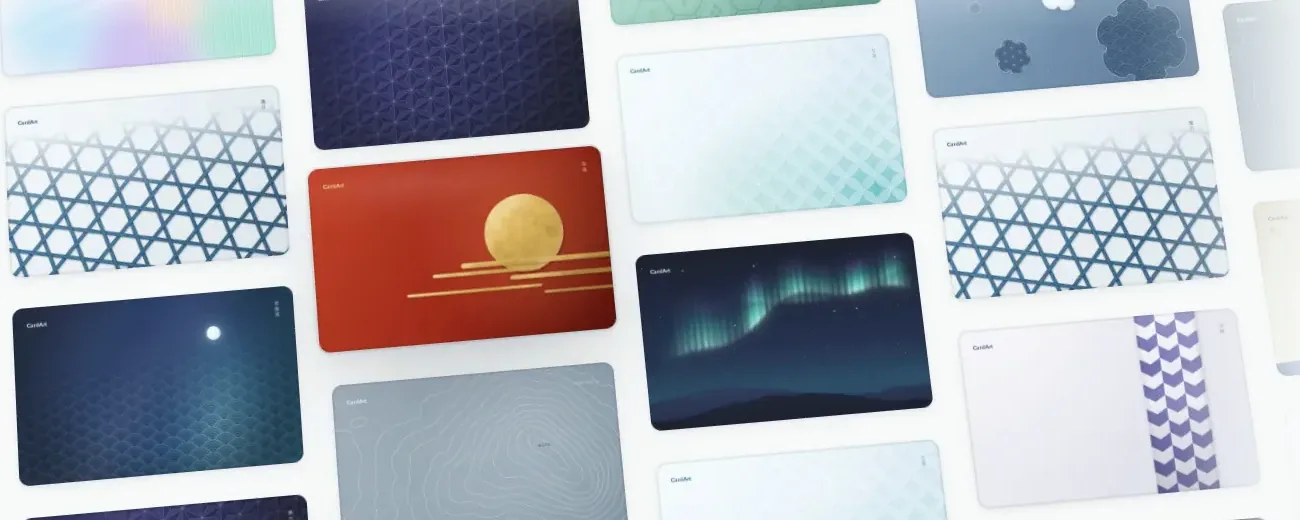
Conheça o CardArt
Tudo o que você pode fazer no CardArt e onde encontrar, em uma página só.
3 minAinda sem cartão? Comece com um cartão cripto da Plasma
Um cartão Visa com saldo em stablecoins de dólar que você pode adicionar ao Apple Wallet, com cashback em XPL. O que o torna bom, quanto custa e como conseguir o seu.
3 minRecomendado por nós



Baixar, criar e enviar
Baixar uma arte de cartão
Encontre no CardArt um cartão de que você goste e baixe o PNG completo de 1536×969.
1 minCriar sua própria arte de cartão
Tamanho, cantos, ajustes de exportação e dicas para artes geradas por IA.
6 minEnviar e compartilhar no CardArt
Entre com Google ou Apple, envie sua arte e ela é publicada assim que for aprovada.
3 min
Aplicar com o AirCard
O AirCard é uma ferramenta de código aberto de terceiros que aplica a arte baixada a um cartão que já está no seu Apple Wallet.
Qual ferramenta devo usar?
Recomendação
Qualquer uma serve: recomendamos o app para Mac
O AirCard para Mac não exige sideload (instalação de apps fora da App Store), então é o jeito mais fácil de começar. Prefere dispensar o computador? O AirCard-iOS também funciona (no iOS 18–26, ele precisa de um arquivo de pareamento do SideStore ou de uma ferramenta parecida).
Aplicar com o AirCard para Mac
Conecte seu iPhone a um Mac, escaneie os cartões do app Wallet (Carteira, no Brasil), solte a imagem sobre um cartão e aplique.
8 miniOS 18+macOS 14+Aplicar com o AirCard para Windows
Conecte seu iPhone a um PC com Windows, escaneie um cartão do app Wallet (Carteira, no Brasil), escolha a imagem e aplique.
10 miniOS 18+Windows 10 / 11Aplicar com o AirCard-iOS no iPhone
Troque a arte dos cartões direto no iPhone, sem computador. No iOS 18–26, você importa o arquivo de pareamento criado pelo SideStore ou por uma ferramenta parecida; a partir do iOS 27, também é possível parear no próprio iPhone. Na primeira vez, é preciso instalar o app fora da App Store (sideloading).
15 miniOS 18+iOS 26: parear o AirCard-iOS com o AirCard Injector
Crie um arquivo de pareamento em um Mac com o AirCard Injector e importe-o no AirCard-iOS, no seu iPhone. Configure uma vez e depois troque a arte dos cartões só com o celular.
15 miniOS 26+macOS 14+Restaurar a arte original
Cartões de débito e crédito voltam ao normal com um toque no ajuste Cartão de Transporte Público Expresso; os outros precisam ser removidos do app Wallet (Carteira, no Brasil) e adicionados de novo. Os cartões alterados com o AirCard para Windows também podem ser restaurados com um clique, se tiver sido feito um backup.
3 min
Requisitos mínimos
AirCard para Mac
Mais recente: v1.2.6- iPhone
- iOS 18+
- Mac
- macOS 14+
- iPhone
- iOS 18 ou posterior
- Computador
- Um Mac com macOS 14 Sonoma ou posterior, com chip Apple ou Intel
- Você também precisa de
- Um cabo USB de dados
AirCard para Windows
Mais recente: v1.2.4- iPhone
- iOS 18+
- Windows
- 10 / 11
- iPhone
- iOS 18 ou posterior
- Computador
- Um PC com Windows 10 ou 11 de 64 bits
- Você também precisa de
- iTunes de 64 bits do site da Apple e um cabo USB de dados (depois de configurado, também funciona por Wi-Fi)
AirCard-iOS (no próprio aparelho)
Mais recente: v1.3.2- iPhone
- iOS 18+
- Computador
- Não precisa
- iPhone
- iOS 18 ou posterior: no iOS 18–26, importe um arquivo de pareamento; a partir do iOS 27, também é possível parear no próprio iPhone
- Computador
- Algumas ferramentas de sideloading (instalação de apps fora da App Store) precisam de um computador na primeira instalação; o pareamento é feito no celular e, depois disso, não é preciso computador
- Você também precisa de
- Uma ferramenta de sideloading (SideStore, AltStore, LiveContainer…) e o LocalDevVPN; no iOS 18–26, também o arquivo de pareamento criado por uma dessas ferramentas
O iOS 17 e anteriores não são compatíveis, nem o iOS 27.2 ou posterior
Para verificar: no iPhone, abra Ajustes › Geral › Sobre. No Mac, escolha o menu Apple › Sobre Este Mac. No Windows, pressione Win + R, digite winver e pressione Enter.
Perguntas frequentes
Não achou a resposta? Escreva para hello@cardart.cc ou mande uma mensagem no X(abre em uma nova aba) ou no Xiaohongshu(abre em uma nova aba).
Todas essas ferramentas exigem pelo menos o iOS 18 — versões anteriores não são compatíveis. No iOS 18 e posterior, funcionam tanto as versões para computador (Mac, Windows) quanto o AirCard-iOS, no próprio aparelho: no iOS 18–26, o AirCard-iOS precisa de um arquivo de pareamento do SideStore, do LiveContainer ou de uma ferramenta parecida e, a partir do iOS 27, também é possível parear no próprio celular.
Sim. Com um PC com Windows 10 ou 11 (64 bits), use o AirCard para Windows. Sem computador, o AirCard-iOS funciona direto no celular: pareie no celular a partir do iOS 27, ou importe um arquivo de pareamento do SideStore, do LiveContainer ou de uma ferramenta parecida no iOS 18–26 (instalar essas ferramentas de sideloading na primeira vez pode exigir um computador).
O AirCard só substitui as imagens que o app Wallet (Carteira, no Brasil) mostra no seu aparelho. O cartão em si não é alterado, então pagamentos e transporte funcionam normalmente.
Force o fechamento do Wallet no Seletor de Apps e abra-o de novo; se precisar, reinicie o iPhone. Se nenhum cartão for detectado, mantenha o celular desbloqueado, reconecte e escaneie de novo.
O número no canto inferior esquerdo (•••• 1234) não faz parte da imagem. O Wallet o adiciona a partir dos dados do seu cartão, em uma cor definida pelo seu banco, e ele não muda com a nova arte. Em geral ele continua lá, mas se confunde com a arte. Abra o cartão e dê zoom no canto inferior esquerdo. Se estiver difícil de ver, escolha uma arte com mais contraste nessa região: escura atrás de um número branco, clara atrás de um preto. Cartões de transporte, Apple Cash e alguns outros não mostram número nenhum.
Não. Todo cartão do CardArt é normalizado para um PNG de 1536×969 que funciona direto com o AirCard.
Atualizações ou uma renovação do cache do Wallet podem reverter a arte — basta aplicar de novo. Antes de atualizar o iOS, confira se o AirCard é compatível com a nova versão.
O AirCard é uma ferramenta de terceiros, de código aberto, que modifica arquivos locais no seu iPhone. A Apple não oferece suporte a ela e atualizações do iOS podem quebrá-la. Faça backup do iPhone antes.
Não. As artes de cartão pertencem aos seus criadores; as obras no CardArt são para uso pessoal e não comercial, a menos que o criador diga o contrário. Veja os Termos.
Entre na conta e use “Denunciar” na página do cartão, ou siga o processo em Direitos autorais e remoção.