Get to know CardArt
Everything you can do on CardArt and where to find it, on one page.
- About 3 min
- 10 steps
- Updated October 15, 2026
Steps
Step 1: Find card art
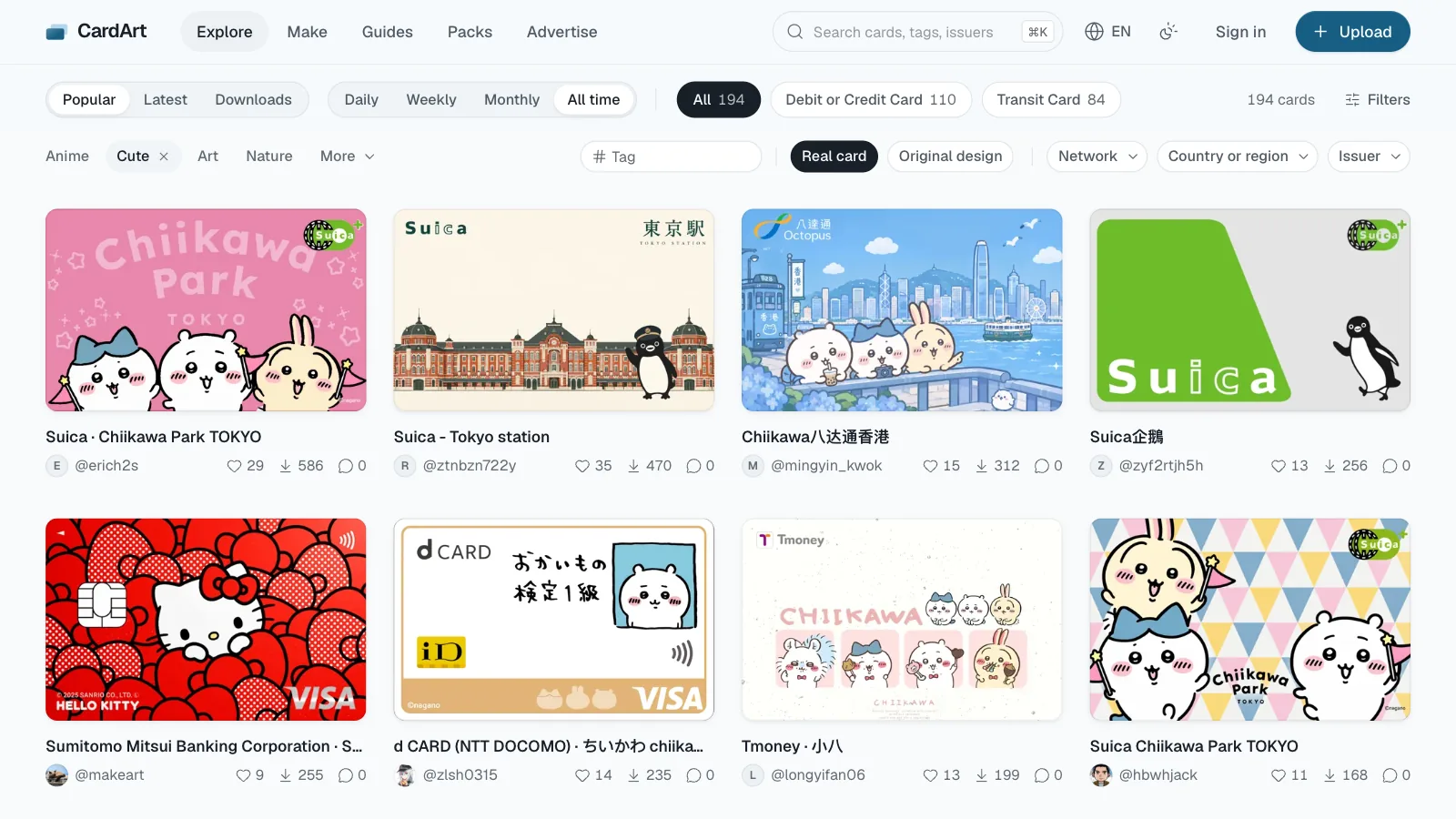
On Explore, filter by theme, card type and country or region, or show only real cards or original designs; the search at the top finds cards, tags and issuers.
Step 2: The card page
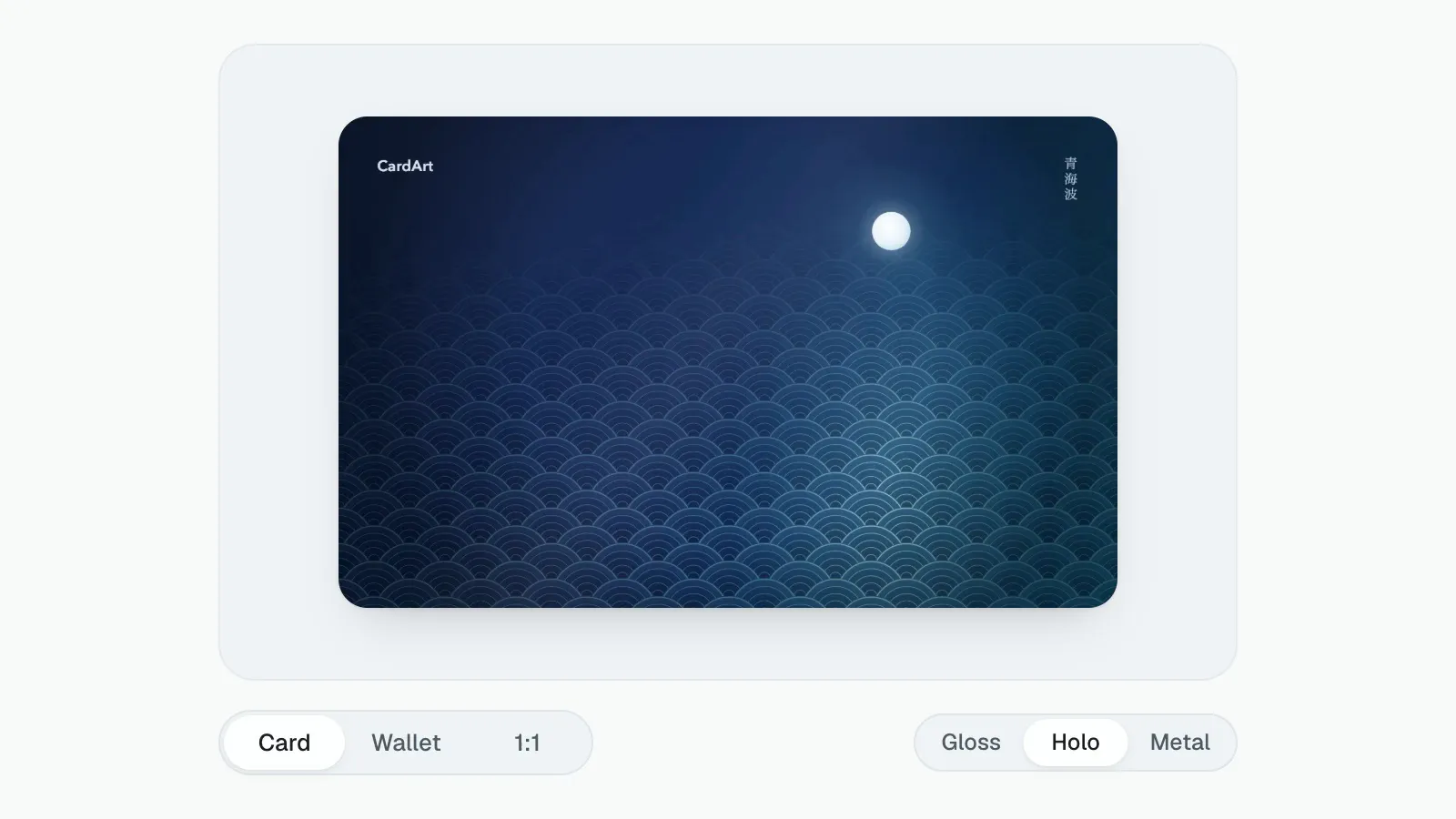
Open a card and switch between Card, Wallet and 1:1 to see how it looks in Wallet and check the details; some cards also come without logos. Download PNG saves the original, no account needed.
Step 3: Wander
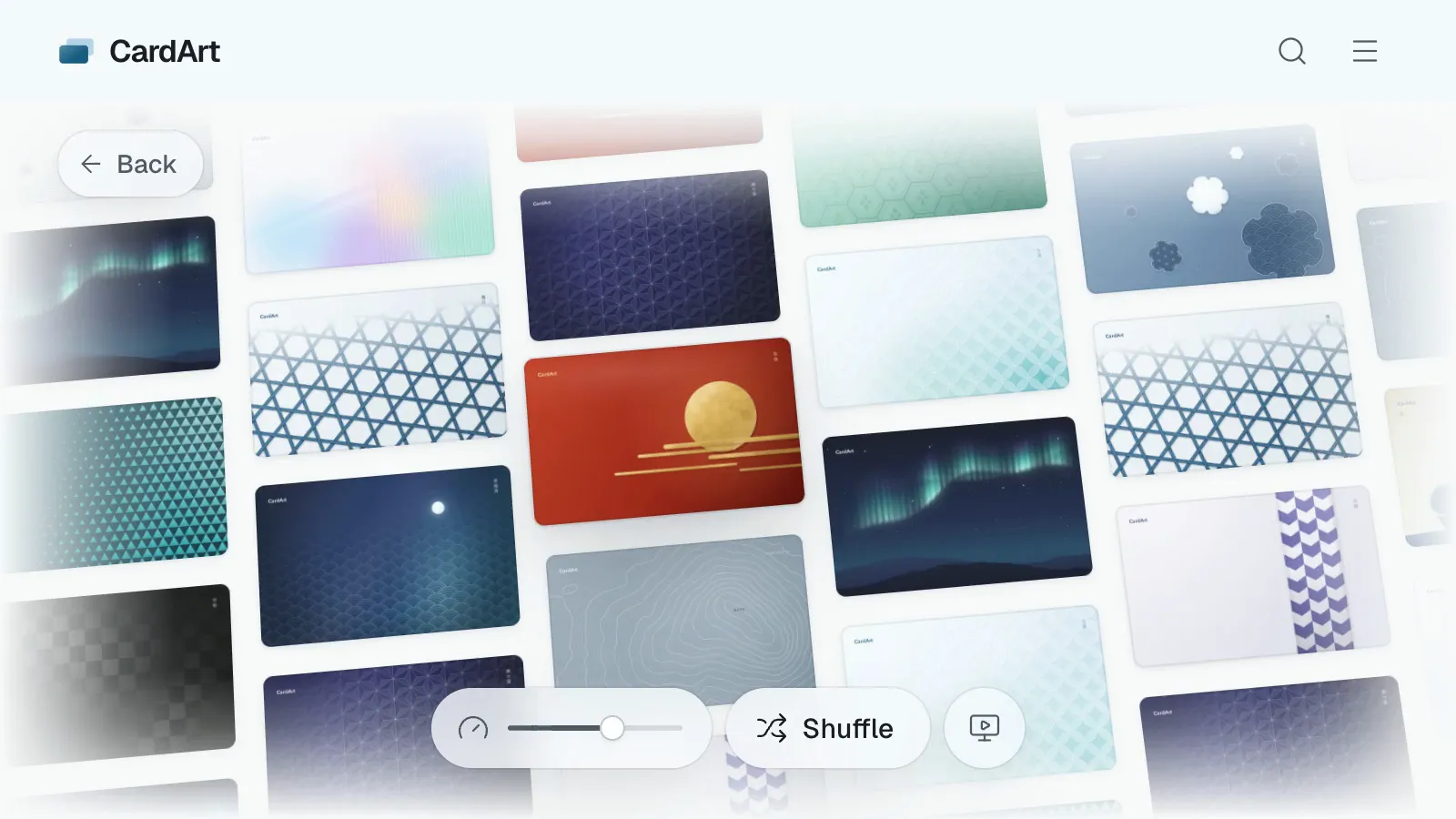
Wander lays a random batch of cards on a wall: drag to look around, Shuffle for a new batch, and open any card to preview, like or download it.
Step 4: Albums
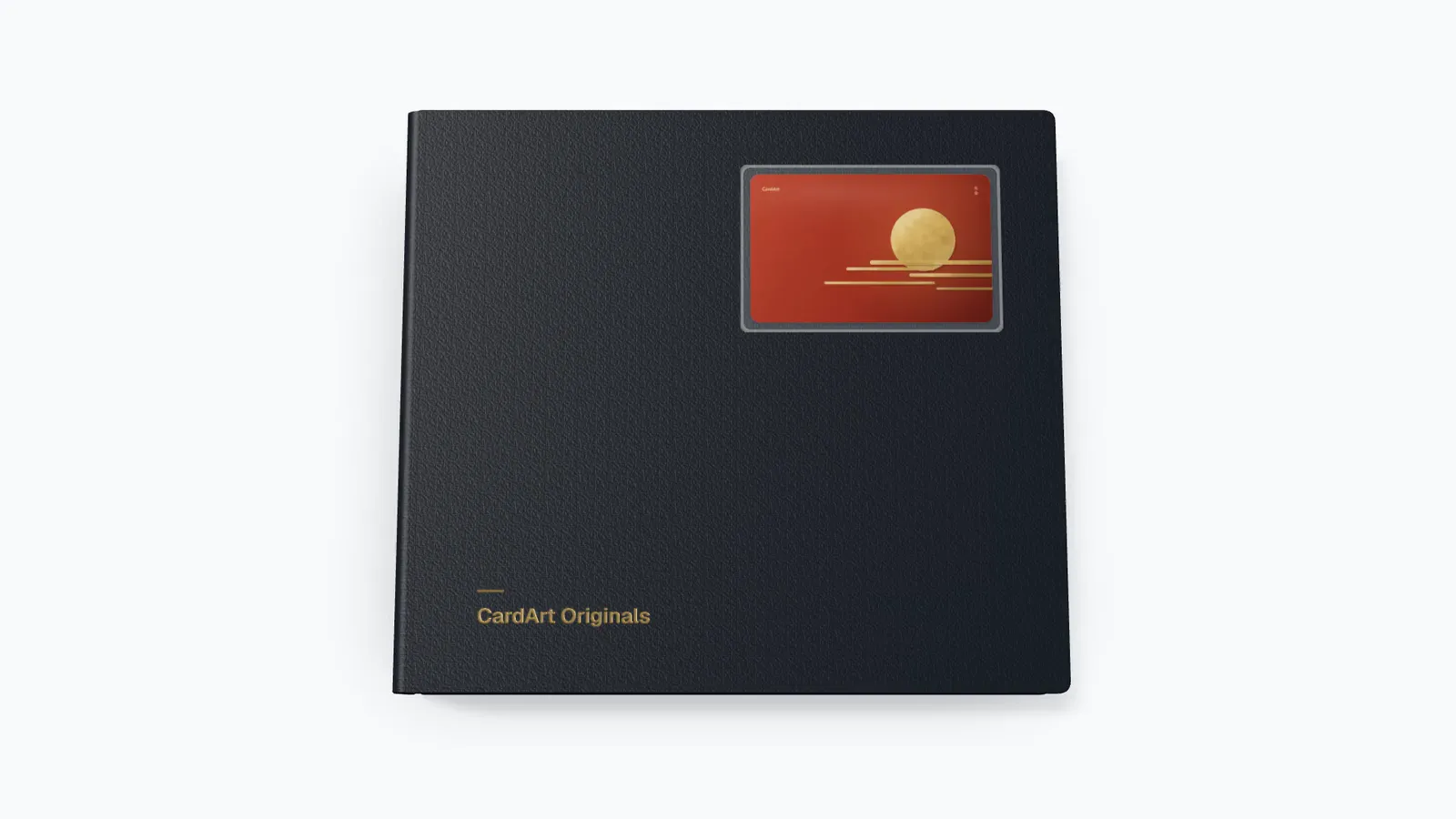
Signed in, tap Add to album on a card page to collect your own and others’ cards, privately if you like; on the album page, Flip through in 3D turns the pages like a ring binder. You can save other people’s albums, Related albums on a card page lists the albums it’s in, and Flip through uploads in 3D on a profile turns someone’s uploads into one binder. Albums in the top navigation lists everyone’s public albums. Try the official album CardArt Originals.
Step 5: Likes and follows
Cards you like are saved under Liked on your profile, visible only to you. Follow creators from their profile or a card page, and their new cards show up in Following on Explore. Both need you to be signed in.
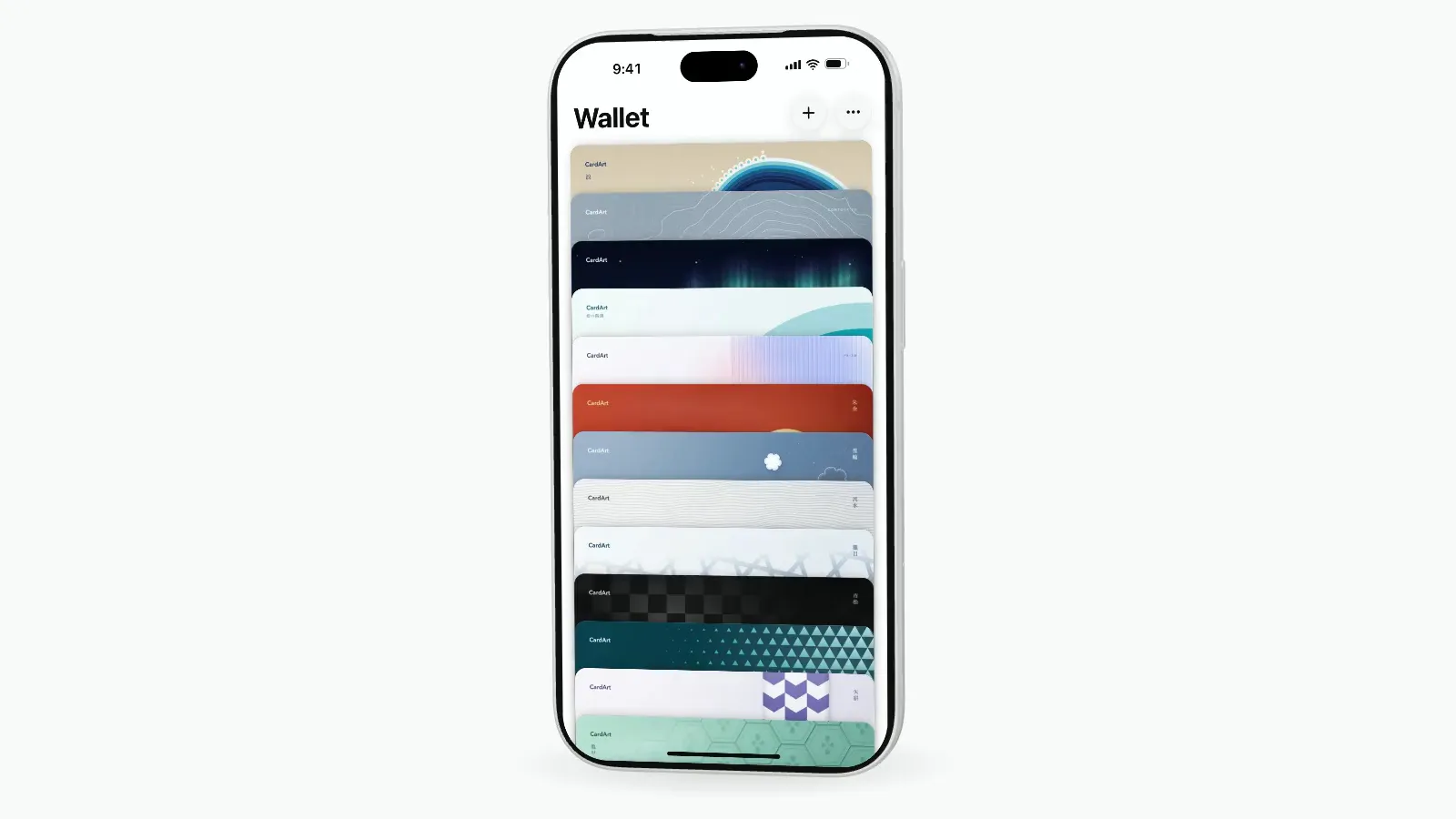
Step 6: Wallet simulator
Signed in, open Wallet simulator on your own profile (it’s also in the account menu) and your public cards stack up in the Wallet of a 3D iPhone. Drag to reorder (preview only) and change the phone’s color.
Step 7: Packs
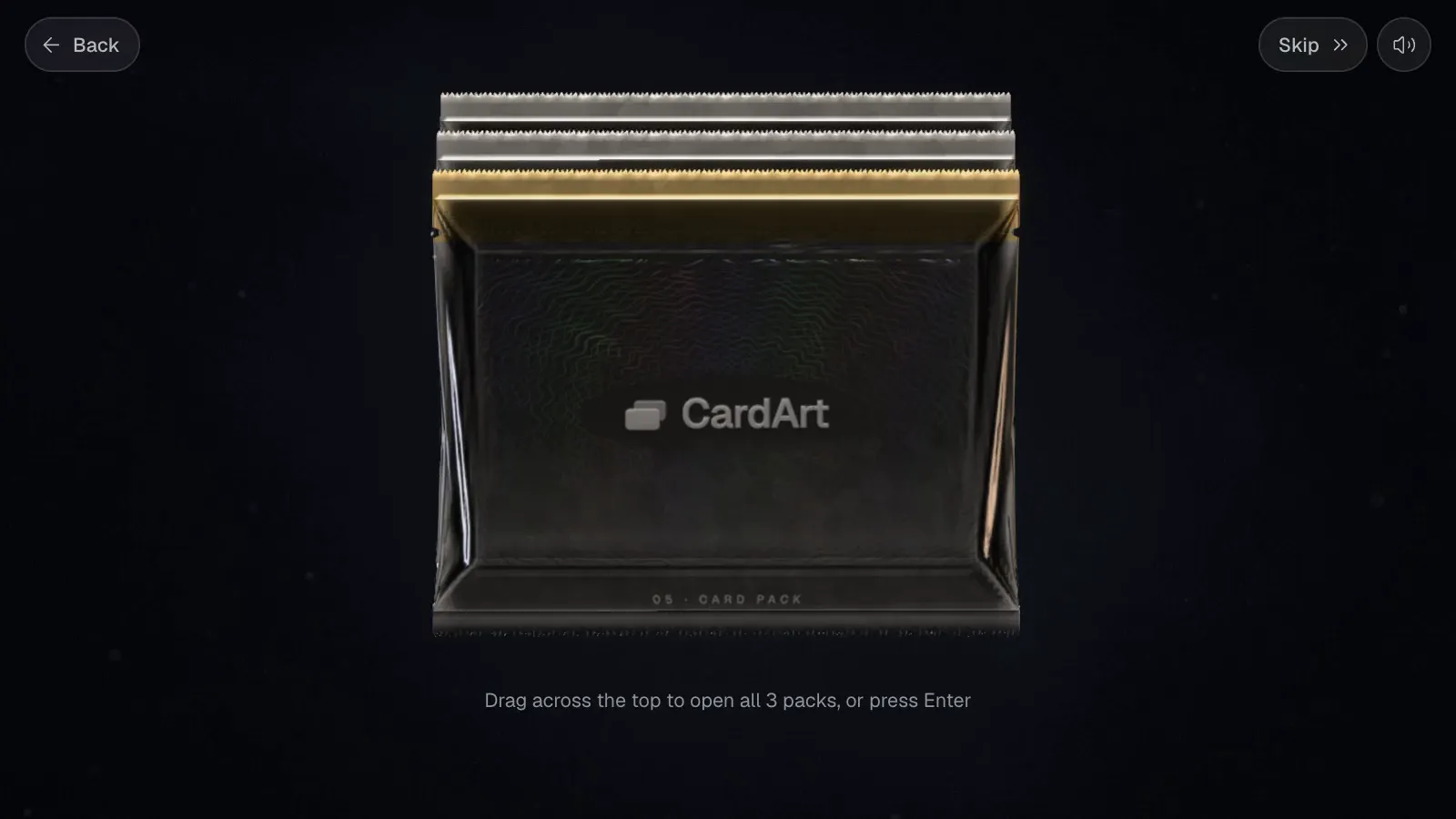
In Open a pack, each pack holds five cards you reveal one by one, and the ones you open go into your collection. Packs are free: signed in, you get some every day, and daily activities like liking, following, sharing and playing Overhang earn more. You can try one pack without signing in.
Step 8: Overhang
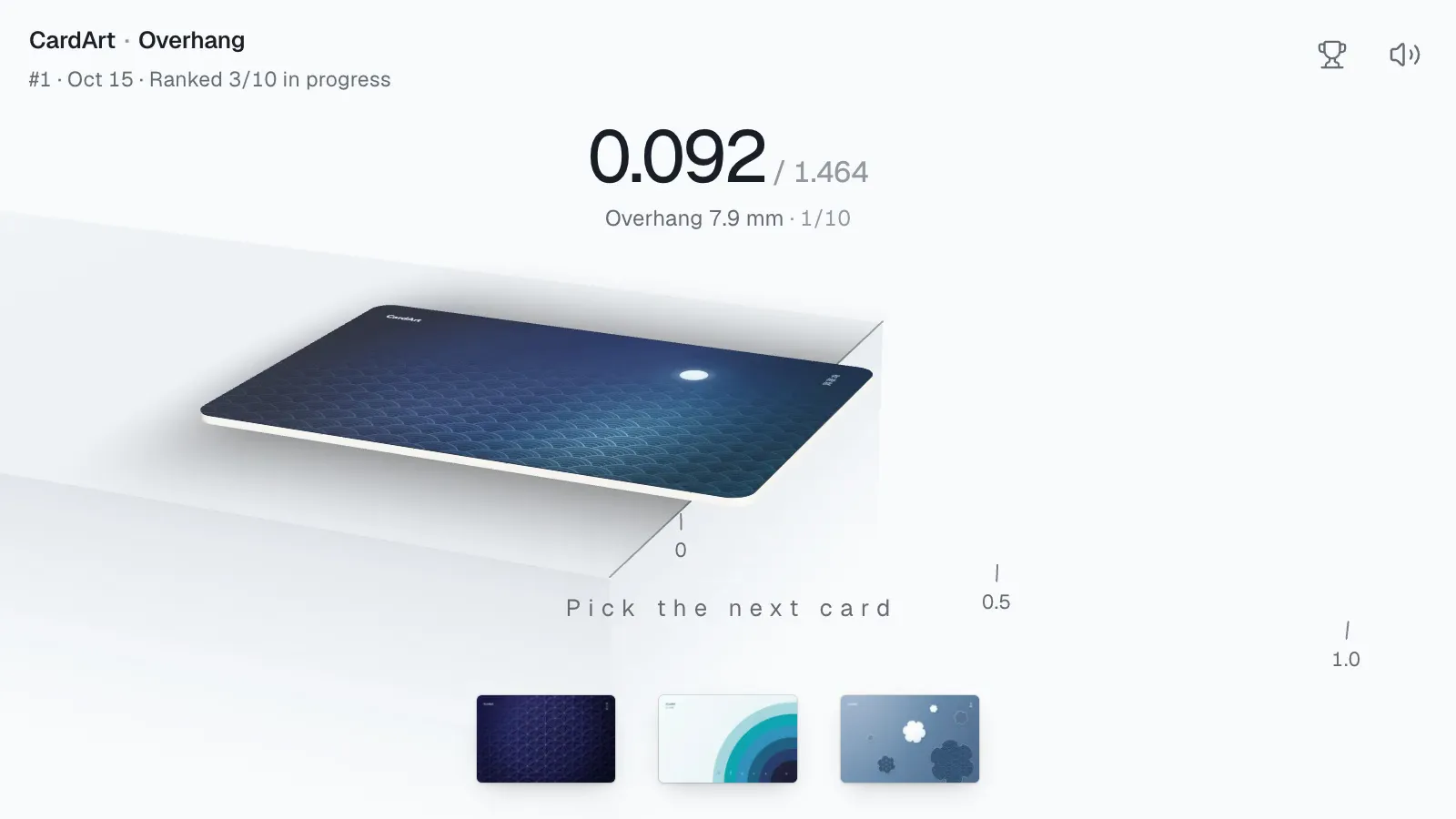
Overhang deals everyone the same ten cards each day; push them past the table edge one by one to see how far they reach. Anyone can play; sign in to get on today’s board, and the daily top three win packs.
Step 9: The maker
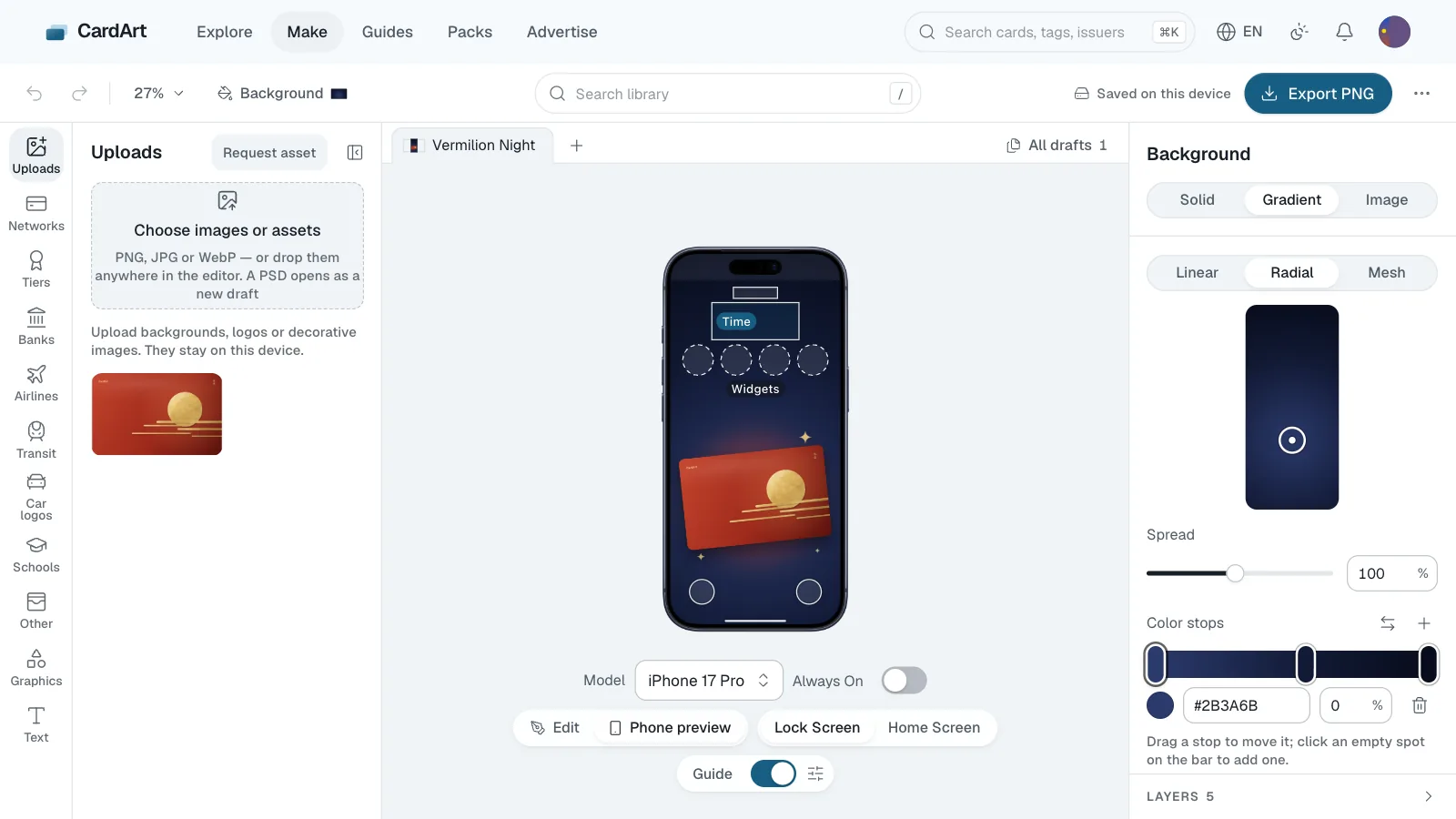
In the maker, build a card face with bank, transit and card network marks; new drafts can also be iPhone wallpapers or posters in a size you choose. Signed in, you can open and download PSD files, and the AI prompt page writes a prompt for an image AI, then you add the marks in the maker.
Step 10: Uploads and Only me
Signed in, upload your own card art on the Upload page; it goes public once approved. Choose Only me and the review is gentler (family photos and selfies are fine; only sexual, violent or hateful content is stopped), and only you can see it; to make it public later, it has to meet the public review standards.
Done